How to Create Professional Screenshots for Your Portfolio
Screenshots appear everywhere: product documentation, social media posts, bug reports, portfolio pieces, sales decks, blog articles, and onboarding flows. In every context, a sloppy screenshot sends a signal that the person sharing it didn't care enough to clean it up. Conversely, a well-composed screenshot builds instant credibility.
Why Screenshot Quality Matters
A polished screenshot tells viewers that you're detail-oriented. It makes your content look more trustworthy, your product more polished, and your communication more effective. Most screenshot mistakes are completely fixable, often in under 60 seconds.
Clean Up Before You Capture
The most common mistakes happen before anyone touches an editing tool.
Close unnecessary tabs and apps. Browser tab bars, notification badges, and system tray clutter immediately make a screenshot feel rushed. Close everything that doesn't belong in frame.
Hide your bookmarks bar. Unless you're specifically capturing browser UI, the bookmarks bar adds visual noise. Toggle it off before capturing.
Use realistic placeholder data. If you're capturing a form or dashboard, populate it with plausible-looking content. "John Smith" reads far better than "test123". Screenshots with realistic dummy data are significantly more trustworthy.
Capture Only What's Needed
Cropping tightly to relevant content is one of the fastest ways to make any screenshot feel more deliberate.
Capture the region, not the whole screen. Use a region capture tool so you can draw precisely around the content you need.
Leave a little breathing room. Don't crop so tightly that the content feels squeezed. A small, consistent margin around the subject makes the composition feel balanced.
Add a Background
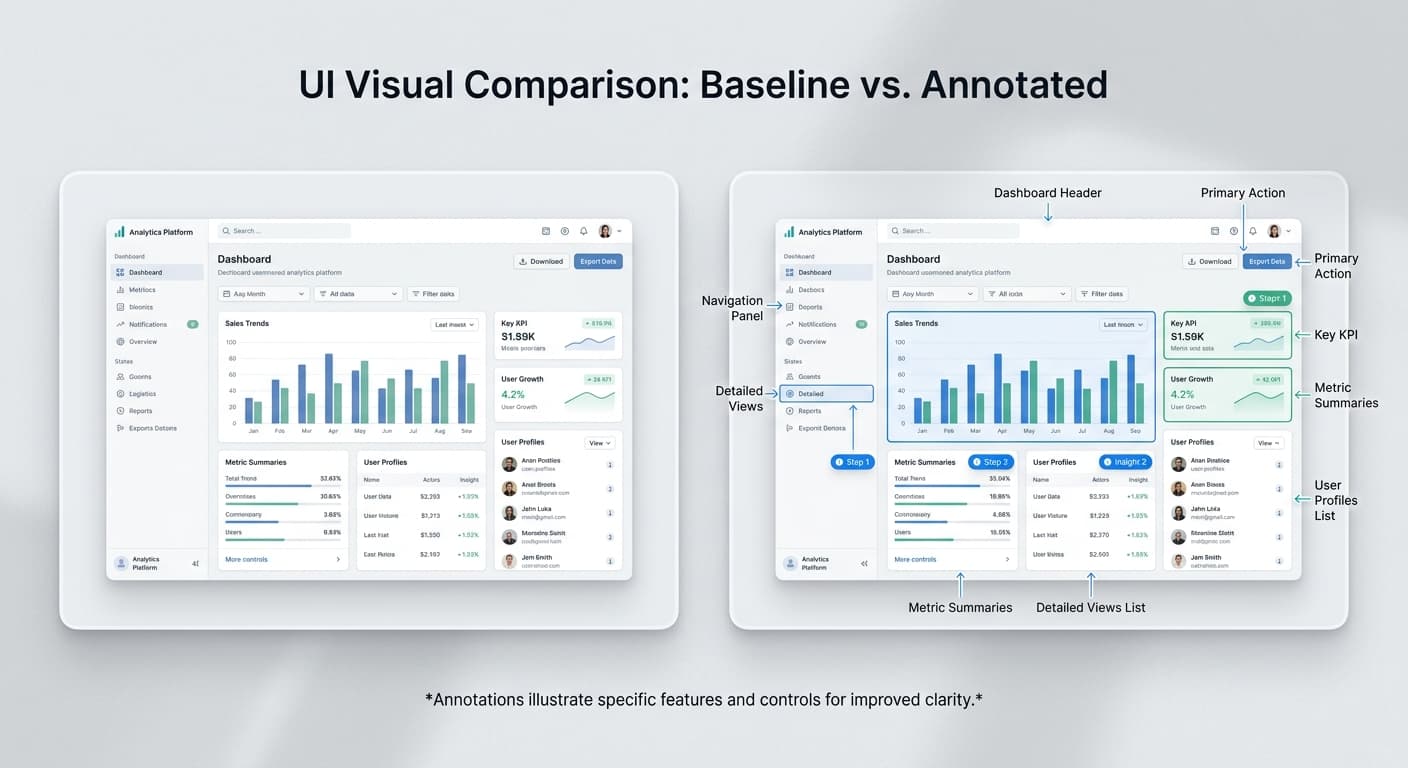
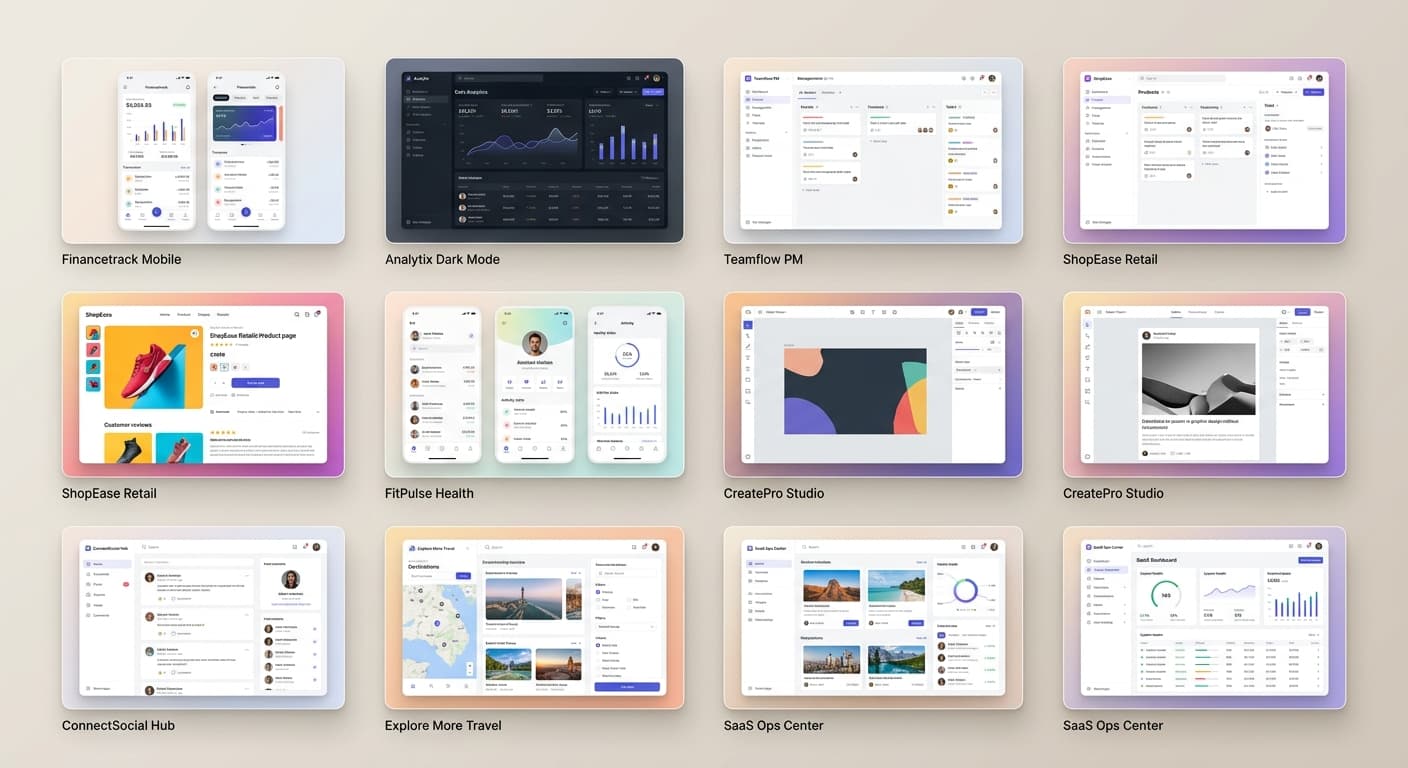
This is where a plain screenshot becomes a polished visual. Dropping a screenshot onto a solid white background is forgettable. A thoughtfully chosen background immediately adds depth, brand consistency, and visual hierarchy.
Annotate with Purpose
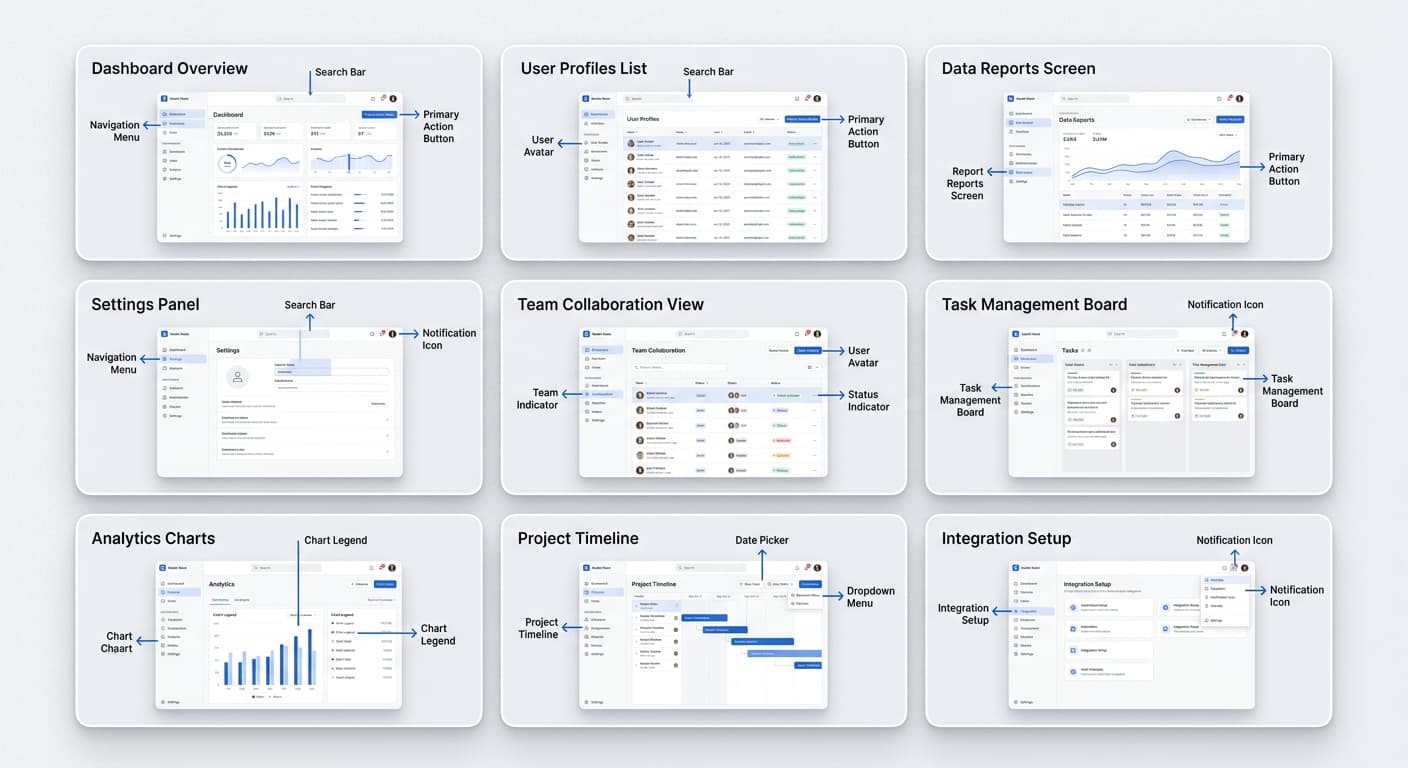
Annotations like arrows, text labels, and circles are incredibly useful for directing attention.
Use one annotation style per screenshot. Mixing arrows, circles, and rectangles in the same image creates visual chaos.
Keep labels short. If a label needs more than four or five words to explain itself, the annotation probably isn't placed correctly.
Export at the Right Size and Format
Always save screenshots as PNG, not JPEG. JPEG compression introduces visible artifacts and blurred text edges that are especially noticeable in UI screenshots with sharp lines and text.
The Bottom Line
There's no single thing that makes a screenshot look professional. It's a combination of small decisions that add up to a visual that looks intentional rather than incidental.