Screenshot Tools for Documentation: Best Practices
Documentation quality directly impacts user success. Clear, consistent screenshots make complex processes easy to follow. Here's how to create documentation-quality screenshots.
Why Screenshots Matter in Documentation
Text alone often fails to convey visual processes. Screenshots provide immediate clarity, reduce support tickets, and help users succeed faster. Poor screenshots, however, create confusion and undermine trust.
Essential Features for Documentation Screenshots
Consistency
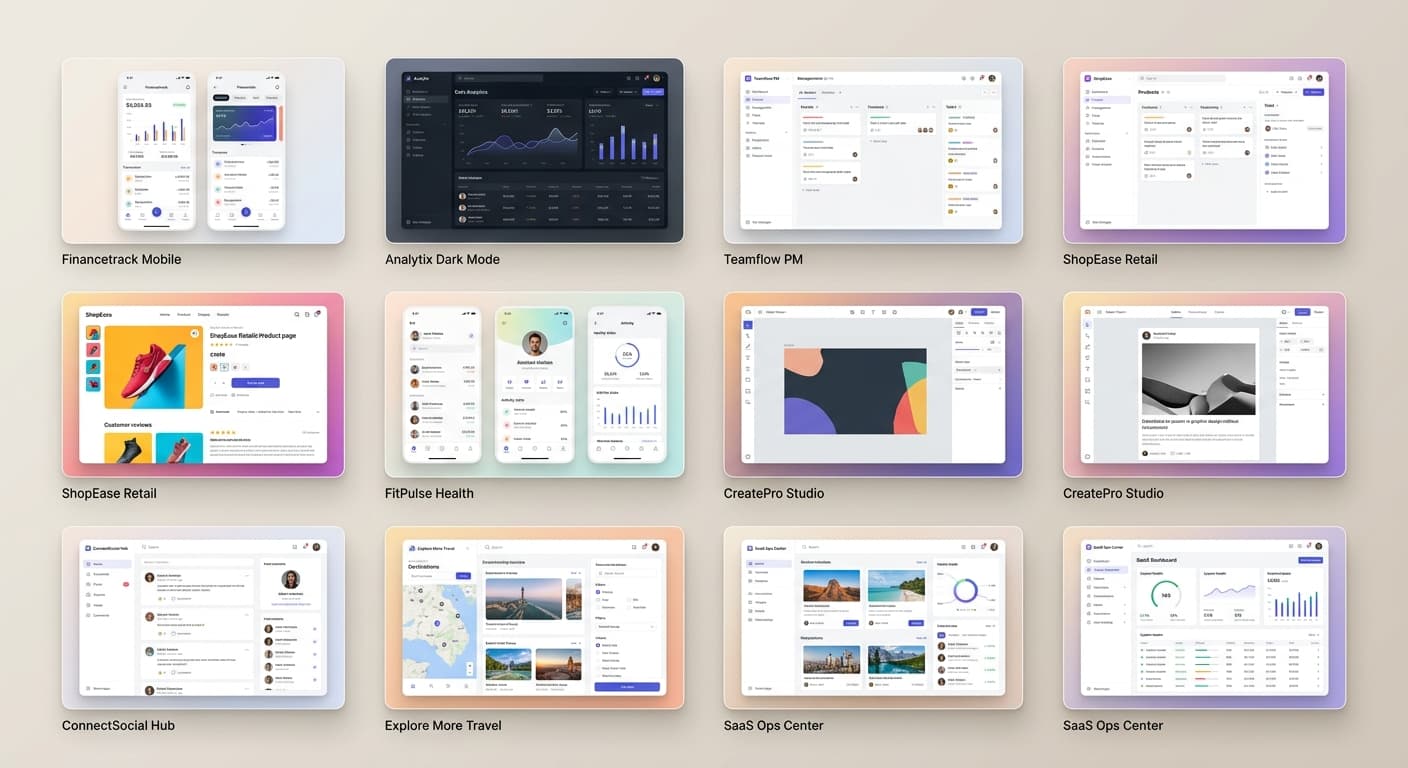
Every screenshot in your documentation should follow the same style. Consistent sizing, framing, and annotation style create a professional, cohesive experience.
How to achieve it: Use a dedicated tool like ScreenshotFramer that applies consistent frames and backgrounds automatically. Avoid mixing different capture methods across your documentation.
Clarity
Screenshots must be sharp, properly sized, and focused on relevant content.
Best practices: - Capture at 100% zoom - Use PNG format (never JPEG for UI screenshots) - Crop tightly to relevant content - Ensure text is readable at display size
Annotations
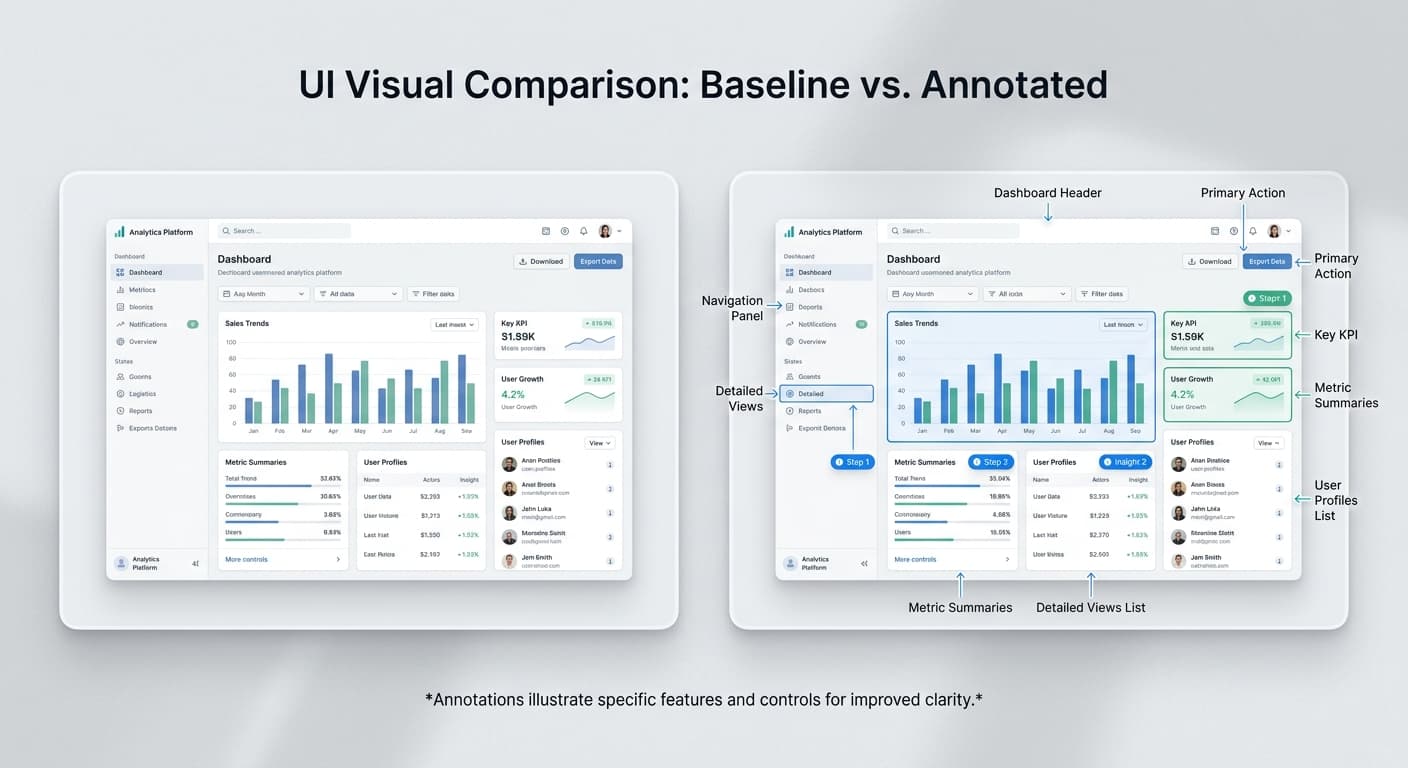
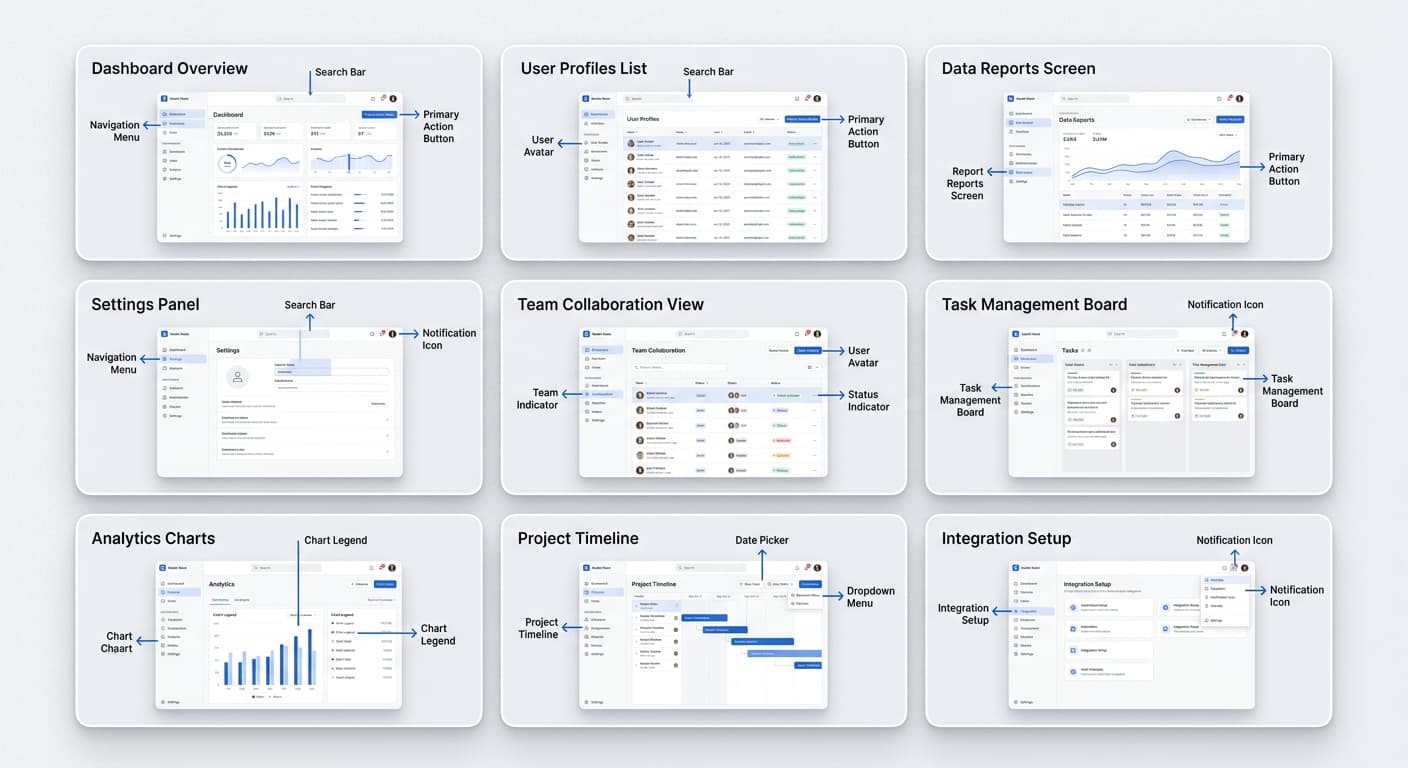
Guide users' attention to specific elements without cluttering the image.
Effective annotation: - Use numbered callouts for multi-step processes - Add arrows to highlight specific buttons or fields - Keep text labels short (under 5 words) - Use consistent colors (blue for neutral, red for warnings)
Privacy Protection
Documentation screenshots often contain sensitive information.
What to redact: - Email addresses - Full names - Account IDs - API keys - Internal URLs - Personal data
How to redact: Use blur tools (not semi-transparent overlays). ScreenshotFramer includes built-in blur for quick redaction.
Documentation Screenshot Workflow
1. Prepare Your Screen
Before capturing: - Close unnecessary tabs and applications - Hide bookmarks bar - Use realistic placeholder data - Set browser to standard size - Clear notifications
2. Capture Consistently
Use the same capture method for all screenshots: - Same browser frame style - Same background (or transparent) - Same padding and shadow settings - Same annotation style
3. Annotate Purposefully
Add annotations that enhance understanding: - Number steps in sequence - Highlight interactive elements - Label unfamiliar UI elements - Avoid over-annotating
4. Export Properly
Save screenshots in the right format: - PNG for UI screenshots (lossless) - Consistent dimensions across documentation - Descriptive filenames (feature-step-action.png) - 2x resolution for high-DPI displays
The Bottom Line
Documentation screenshots require consistency, clarity, and attention to detail. Using a dedicated tool like ScreenshotFramer ensures professional results while maintaining privacy and reducing costs compared to subscription-based alternatives.